30 fps → 60 fps
30fps to 60fps on iPhone, compared frame by frame
A 30fps video changes picture every 33.3 ms. To play at 60fps, a new picture has to exist halfway between every pair of frames. FrameSmoother computes that picture on the iPhone with an AI frame-interpolation model, reuses the original frames between the new ones, and saves a 60fps video. Nothing is uploaded.
01Frame by frame
The frame that wasn't there
Three consecutive frames from a real conversion. The source is a 2-second, 1280×720 test clip at 30fps; it went through FrameSmoother's processing with the High Quality setting and a 60fps target. The middle frame does not exist in the source. The solid line marks the centre of the orange ball; the dotted lines show where it was in the frames before and after.
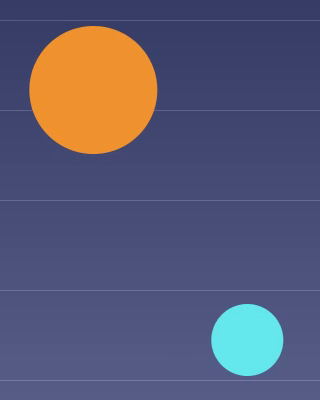

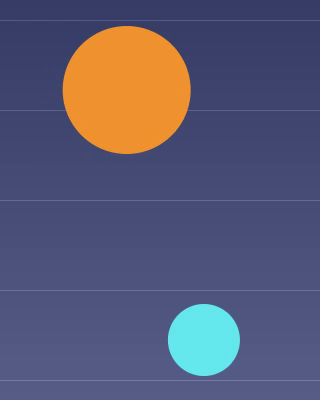
Measured centres (pixel average of each ball): orange 572.8 → 588.9 → 606.2, against an exact midpoint of 589.5. Blue 726.8 → 705.3 → 683.4, midpoint 705.1. This test ran in the iOS Simulator on the CPU; on an iPhone the model normally uses the GPU, so results can differ slightly.
02In numbers
The same clip, before and after
| 2-second test clip | source | after |
|---|---|---|
| Pictures per second | 30 | 60 |
| Frames in the file | 60 | 119 |
| Time between pictures | 33.3 ms | 16.7 ms |
| Frames computed by the model | – | 59 |
| Original frames reused | – | 60 |
Why 119 and not 120: the last original frame has nothing after it to interpolate toward, so the file ends on it.
Top: the source, each frame shown twice so both halves play at the same speed. Bottom: FrameSmoother's 60fps output of the same clip. On a screen that refreshes at 60Hz or faster, the lower ball moves in steps half as large.
03On the iPhone
Making a 60fps copy in FrameSmoother
- Home
Tap Select Video and pick one or more videos from your library.
- Interpolation Setup › Output Frame Rate
Leave Target fps selected and choose 60fps. The line underneath shows what you will get, for example Output: 60 fps.
- Interpolation Quality
High Quality uses the AI model. Fast blends neighbouring frames without AI and finishes sooner.
- top right
Tap Add to Queue. The Queue opens and shows the progress and the estimated time left.
- Queue
When the row says Completed, tap it to open the preview: drag the divider to compare before and after, or step one frame at a time. Back in the queue, save it with the download-arrow button on the row, or share it with the share button (AirDrop and other apps).
04More comparisons